While viewing a plan (see "Viewing individual plan details"), you can specify Employer Contributions as follows:
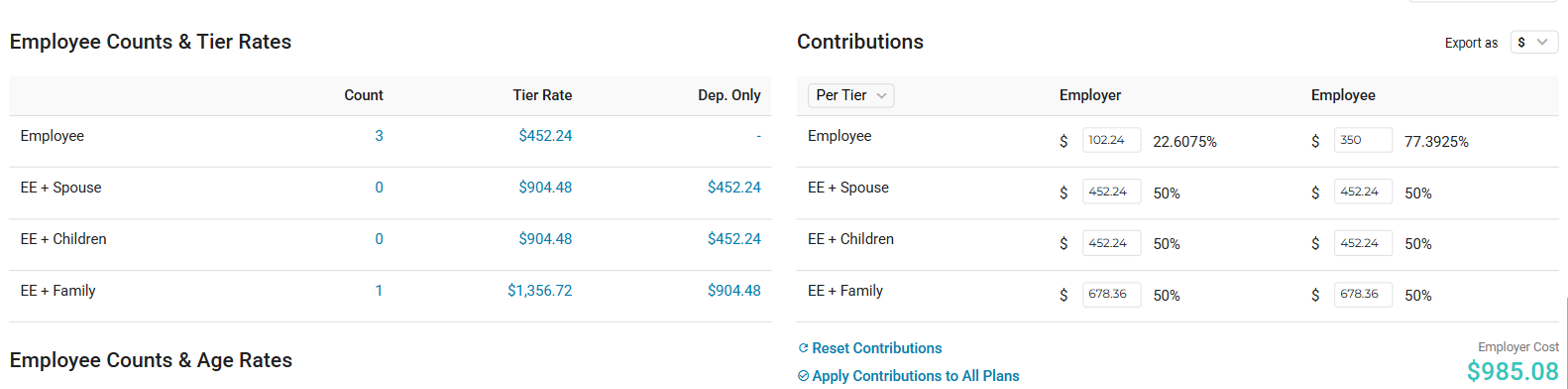
- First, decide whether your group prefers to set contribution strategy based on the "Tier" or based on the individual "Life".
-
"Per Tier" mode calculates the true $ or % of the employee + dependent rate.
- Ex: If Employee + Spouse rate= $400, 50% employer contribution is $200
-
"Per Life" mode removes the employee's share of the rate from the calculation.
- Ex: If the Employee rate= $200 and Employee + Spouse rate= $400, 50% employer contribution would be $100 (($400-$200)*50%)
- Next, decide whether the employer contribution should be specified by dollar amount ($) or by percentage (%). The application will automatically calculate the resulting $ amount if you input % values, and the % values if you input $ amounts.
- Then use our dials or tap in the middle of a dial to enter an exact % or $ value.
- Note: contribution values may be specified that exceed the associated tier rate.
|
While viewing a renewal plan option within the BenefitBuilder presentation (click "show detail" and "edit"), you can specify Employer Contributions same as above.
Notes:
- Check the "Apply Contributions to All Plans" checkbox, to apply the contributions you specify on the plan, to all other renewal plans for your employer group.
- Once this is set, you can always view another plan and modify the contributions for that particular plan, while leaving the contributions uniform across all other plans.
- Tap the Reset Contributions link to reset all employer contribution dials to their defaults (typically 100% employer contribution).
Comments
0 comments
Please sign in to leave a comment.