06/23/2026 - Count Improvements - See What You’re Spreading
If you've ever wondered why presentation premiums didn't match Plan Explorer or where employee counts should be adjusted, these updates are designed specifically to solve those challenges.
IMPORTANT UPDATES:
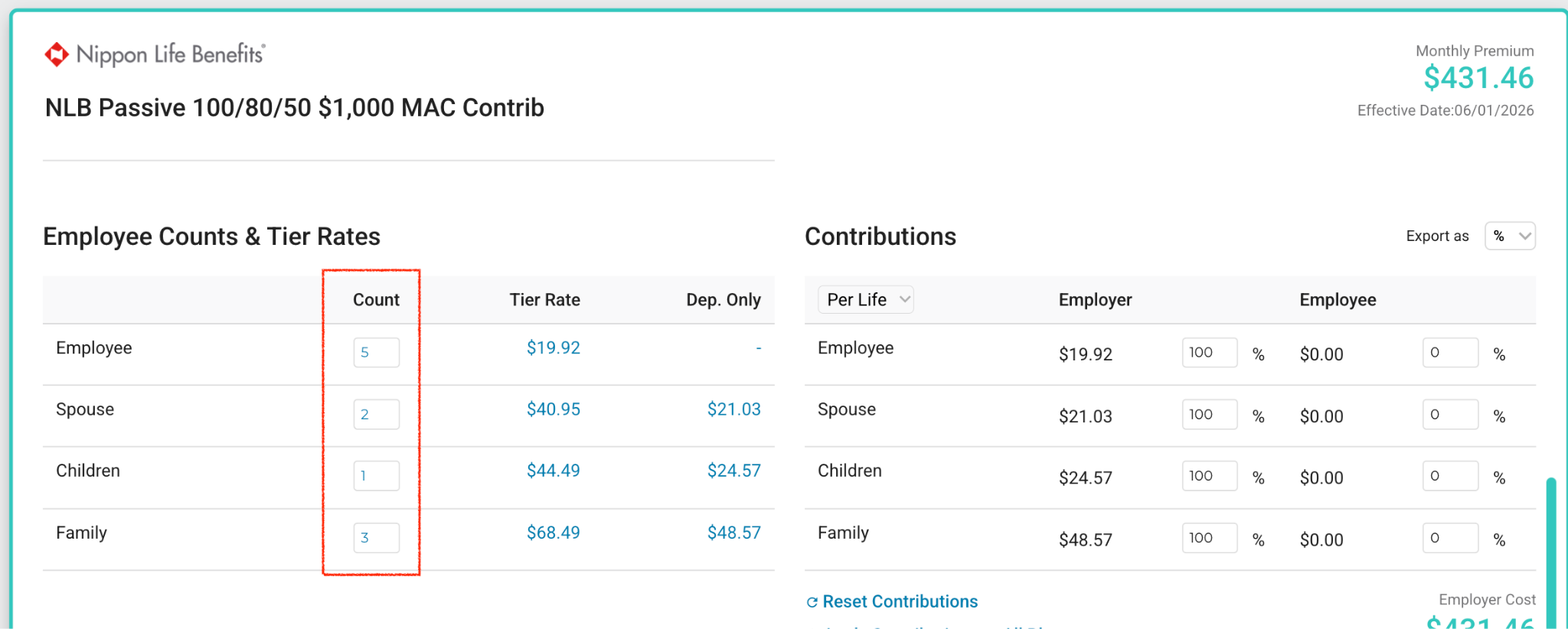
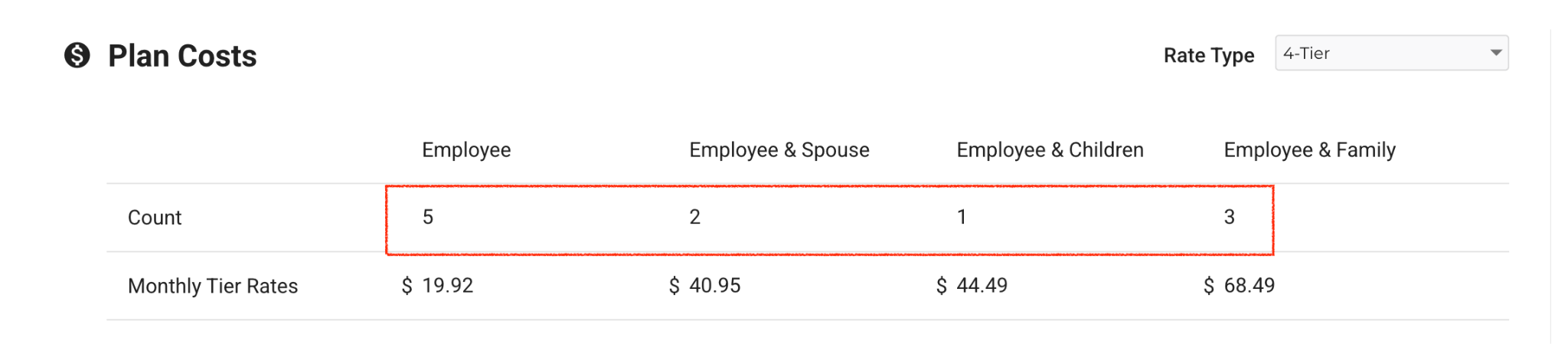
When adding plans to your presentation, premiums will default to using the employee counts within the right side panel and match the premiums you see on plan cards.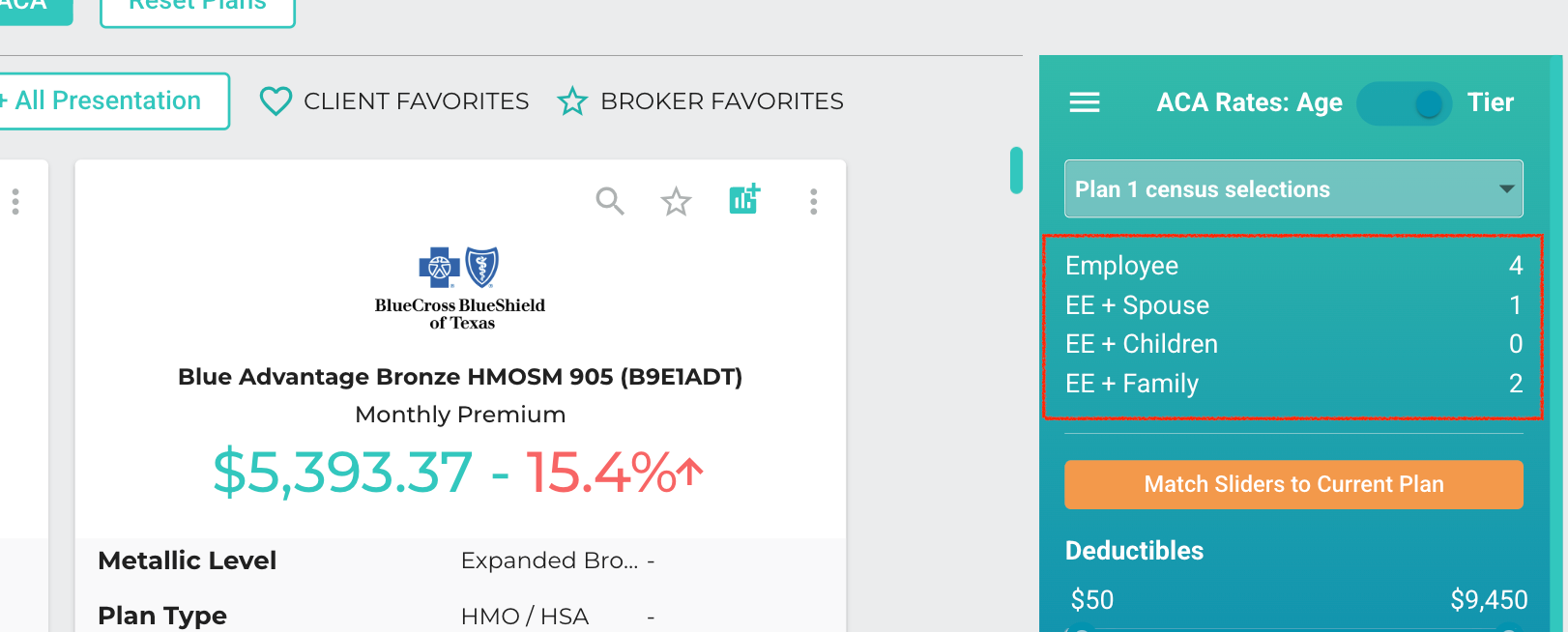
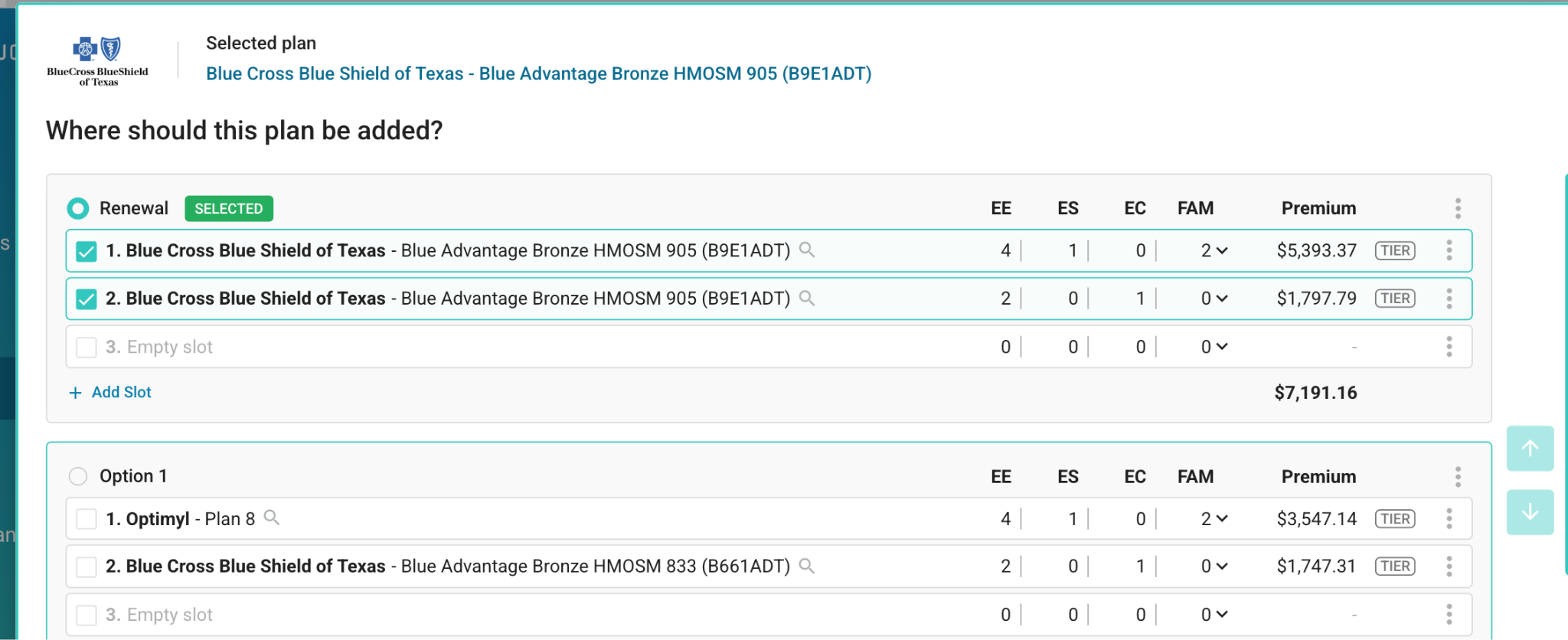
For maximum flexibility, employee counts and premiums for your presentation plans can be adjusted in several ways, either in Plan Explorer or your presentation:
(1) For plans that have age rates, tapping the counts will allow you to adjust member-plan associations and resulting premiums.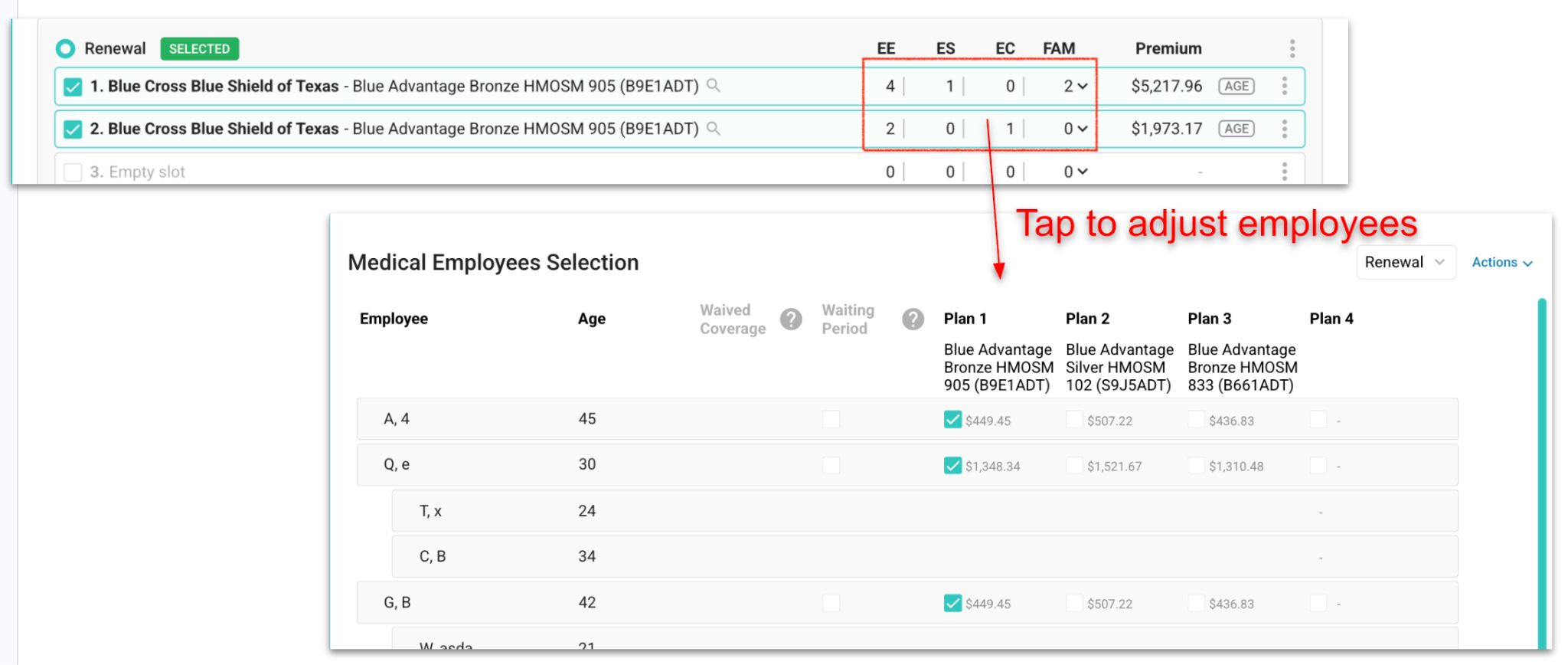
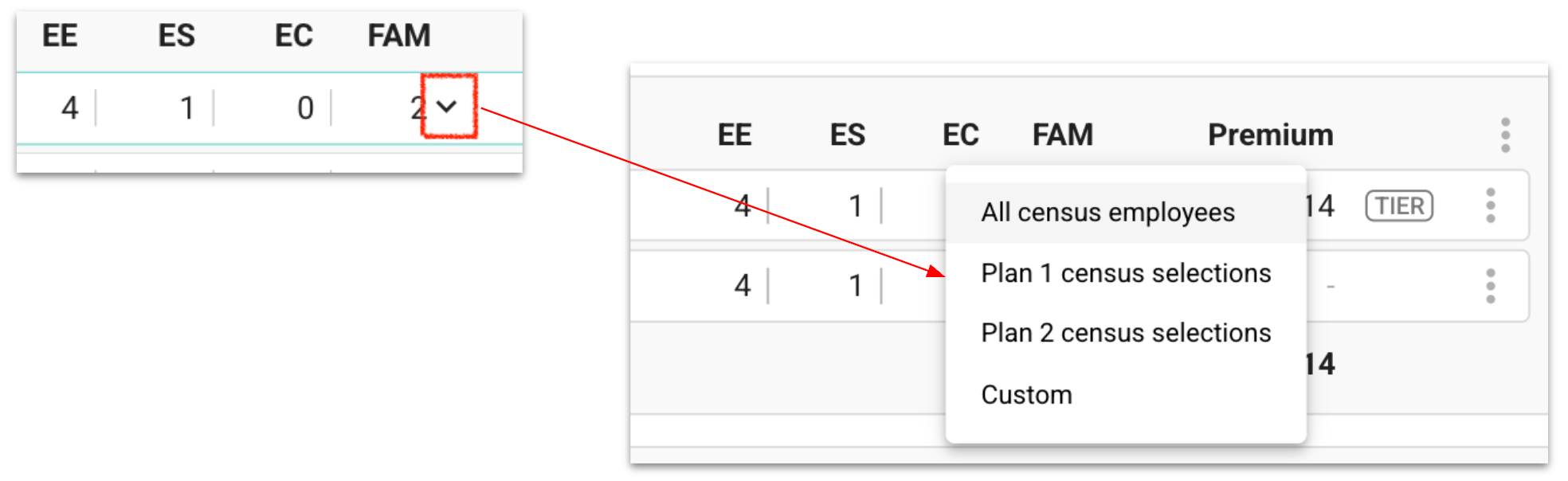
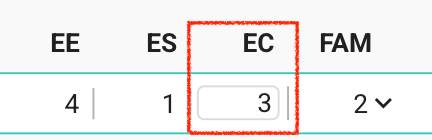
PLEASE NOTE - employee counts can no longer be adjusted on the “plan detail” view or “plan edit” view
Employee counts are no longer editable here - all premiums are driven by Plan Explorer employee counts.
06/02/2026 Automatic ACA Renewals:
We’ve released the ability to automatically Identify and add ACA Renewals to presentations in PerfectQuote
Tired of looking for your ACA Med renewal plans?
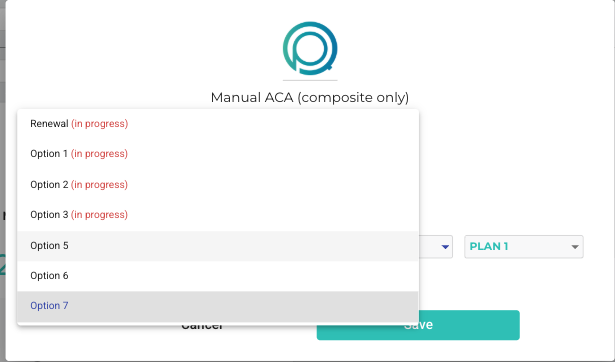
Now after submitting a census, PerfectQuote will automatically identify any available “next year” renewal plans associated with your confirmed current ACA plans. These plans will be automatically added as the first Medical option (titled “Renewal”) on your presentation, eliminating the need for you to find and add your client’s renewals!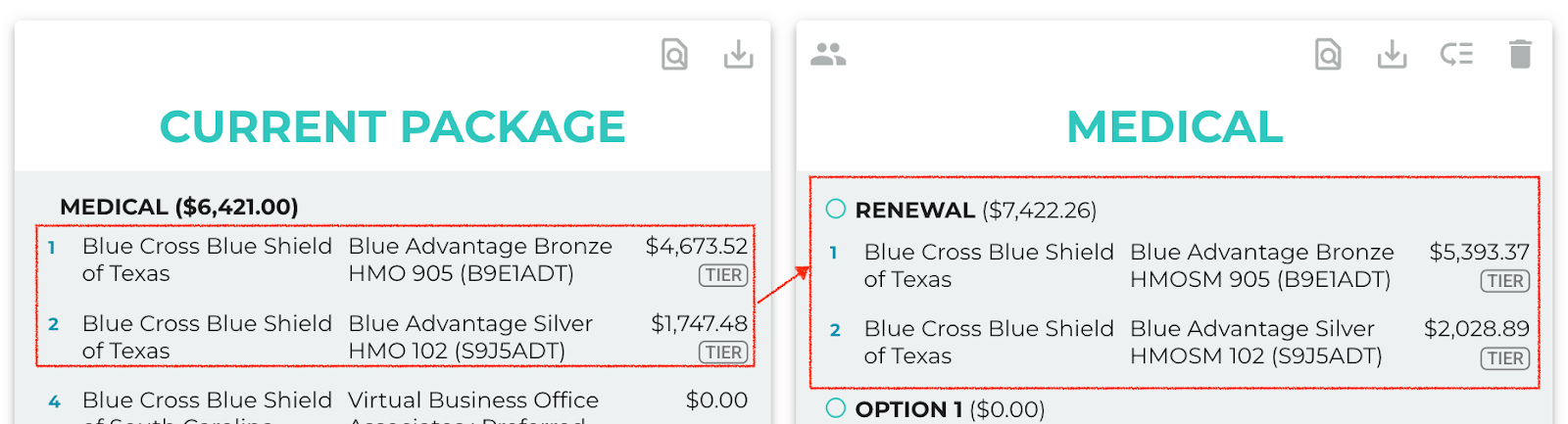
In addition, when adding plans to the Presentation from Plan Explorer, a dedicated first “Renewal” option will appear, making it easy to include (or ignore) renewal plans as you build your presentation.
This update reduces manual effort, improves accuracy, and ensures you always have the most relevant renewal options readily available for your clients.
06/02/2026 Automatically include the Broker of Record on the Presentation:
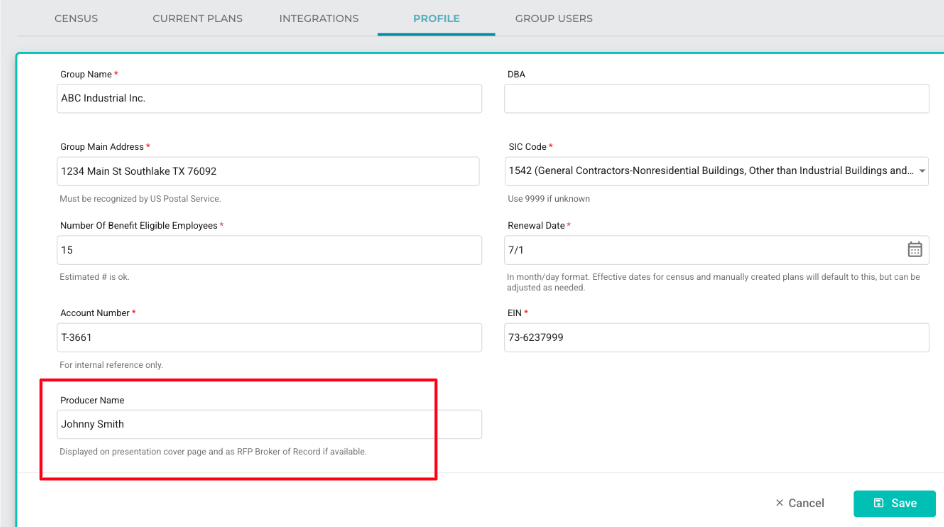
Many of you have asked if it's possible to specify a separate producer that may work on a group alongside a broker. The answer is now yes.
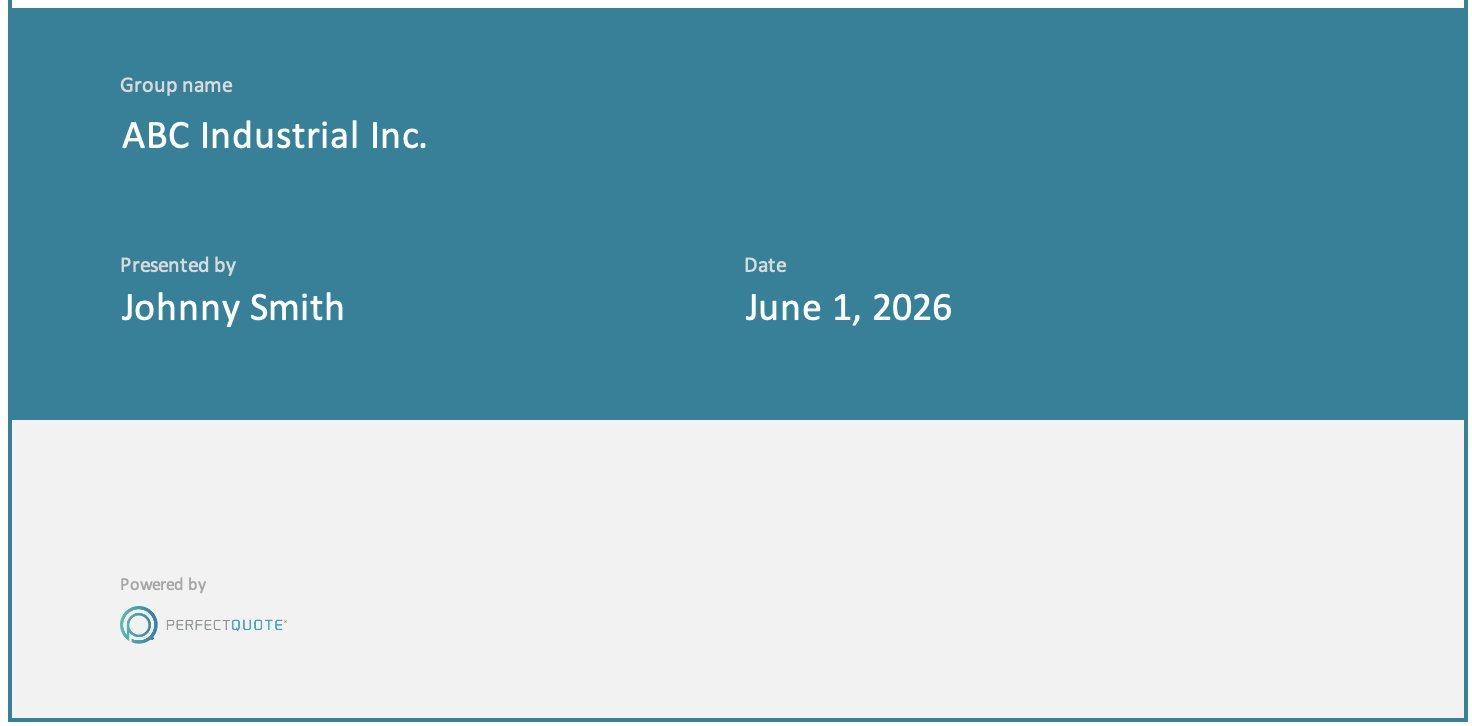
Simply add the Producer's name to the Group Profile, and it will automatically be displayed on export cover pages. RFPs will also set the Broker of Record to the group Producer.
This enhancement eliminates the need to manually add Producer names to RFPs or adjust exports on the fly, helping your team save time, improve consistency, and streamline workflows.
For customers who prefer not to use our new Producer field, no action is required. If the Producer field is left blank in the Group Profile, there will be no impact to your existing workflow, and your exports and RFPs will continue to behave as they do today.
4/21/26 Group Workflow Dashboard:
Group Workflow Dashboard: Managing your team's renewals just got a lot more streamlined.
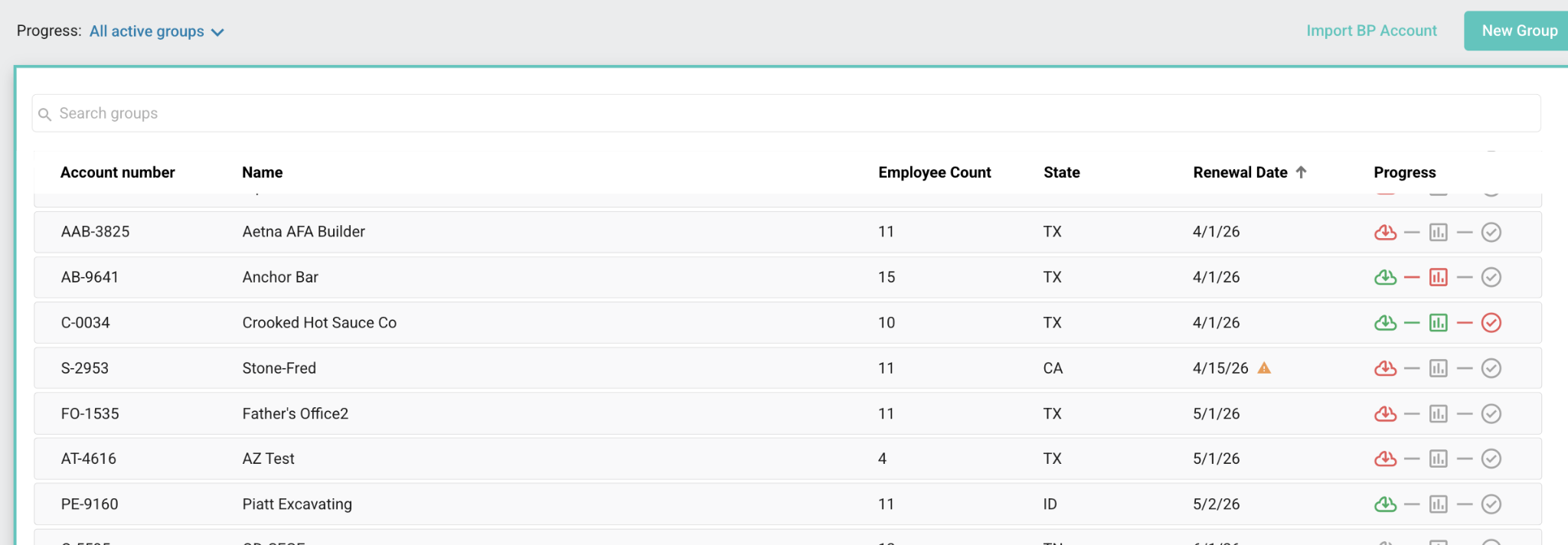
On Tuesday, we introduced the Group Workflow Dashboard, a centralized view that gives you instant visibility into every group’s renewal status so you can quickly prioritize work and keep things moving without the manual tracking.
You can read the full help article here.
What This Means for Your Team
This makes it easy to:
Focus on groups that need immediate attention
Understand exactly what step is outstanding (quoting, presentation, confirmation)
Stay ahead of upcoming renewals instead of reacting late
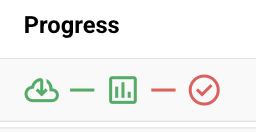
Each group is automatically categorized so your team knows what to do next:
On Track (Green) – Everything is progressing as expected
Late (Red) – Plans are not confirmed at least 30 days before renewal
Not Started (Grey) – No renewal activity has begun
Why This Matters
This is all about reducing friction and helping your team operate more proactively.
Instead of manual tracking, you’re staying ahead, with a clear indication that shows what matters, when it matters.
4/7/2026 Updates to Age Rates:
Custom age rates: when manually creating or editing a medical plan, you can now enter or copy/paste custom age rates. Especially helpful to present plans when carriers have not yet released rates for a given quarter!
-
Rate Types: ACA Med plans can now be set up to have Composite-only, Age-only or Composite + Age rates. We’ve also renamed the “Age Rated” (single monthly premium) rate type to “Premium-only”.
- Presentation updates: we now clearly indicate whether ACA Med plans are being presented as age rated or tier rated. Note that the rating method for ACA Med plans can always be updated within the Option reorder view, either at the option level or plan level.
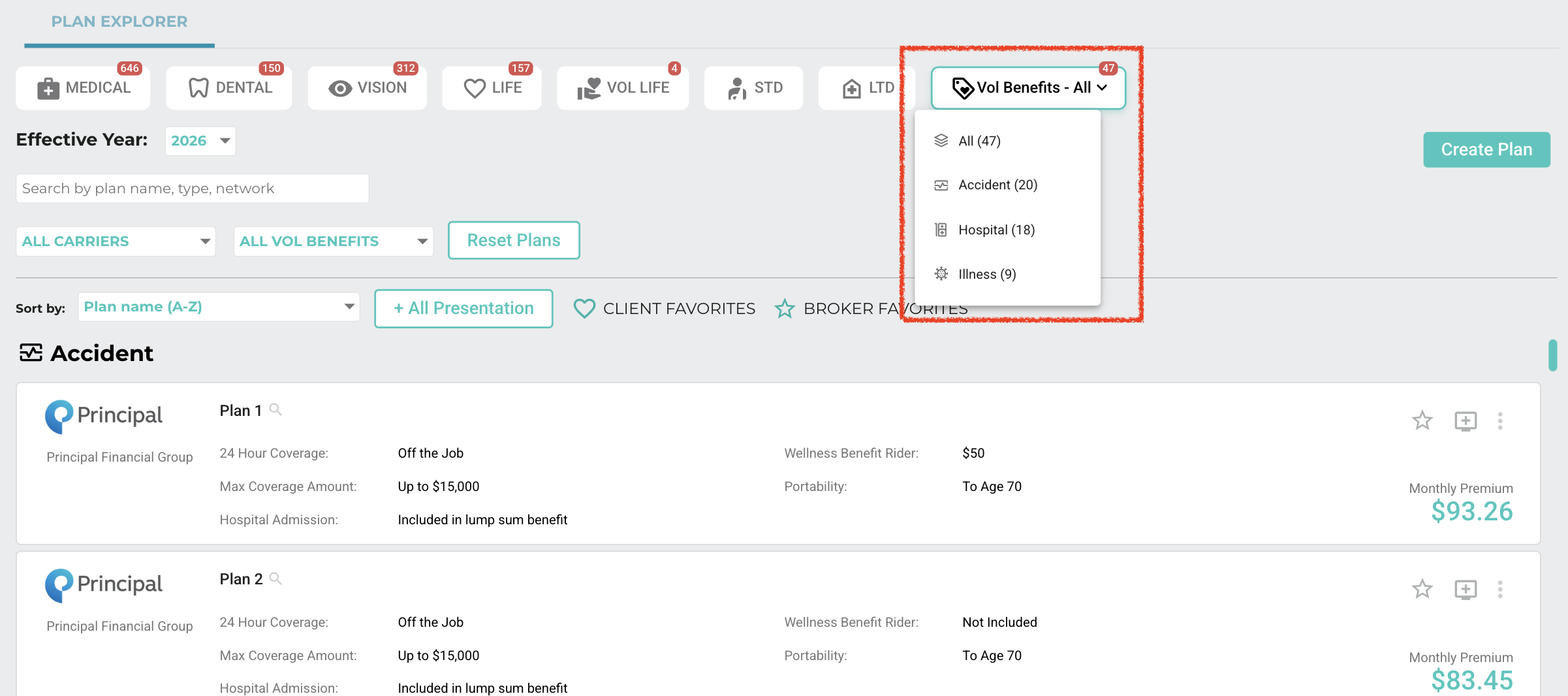
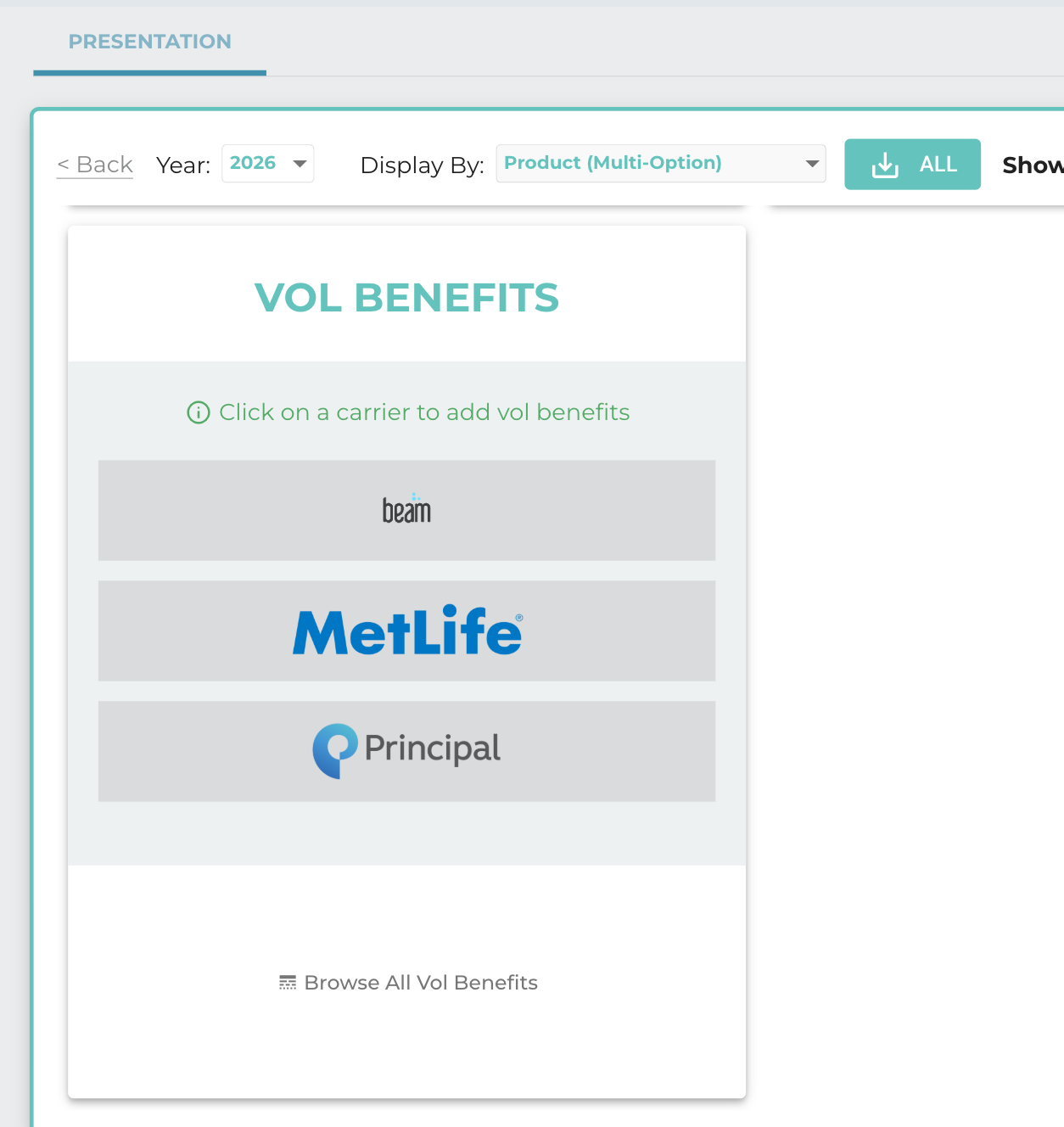
2/24/2026 Supplemental Health is Live on PerfectQuote
- Principal
- Beam
- Metlife
- Coming soon
- Globe Life
- 4-tier composite
- 4-tier age banded
- 1-tier age banded

1/20/2026 New Renewal Filter Plan Logic:
- Your feedback is valuable and with this release, we made it easier to show the desired Medical plans in Plan Explorer.
- Old behavior: return plan that match any filters
- NEW: return plans that match ALL filters
- Now display alt-funded PPO/POS plans
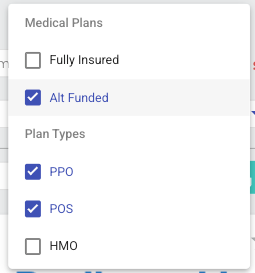
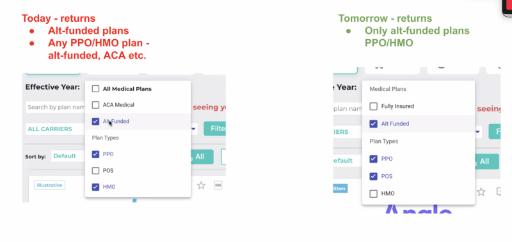
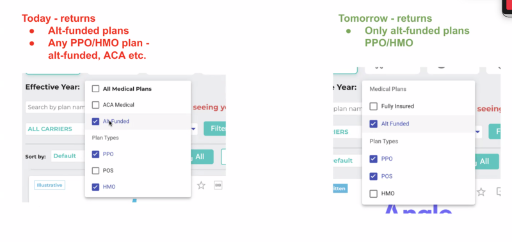 Old Behavior: display plans that are alt-funded or PPO/POS (alt-funded or fully insured/ACA)
1/6/2026 Simplified Census
We’ve heard your feedback and made our census file easier to read and work with!
- Cleaner easier to read layout.
- Quickly copy/paste values and rows.
- Support for undoing actions (by tapping CTRL+Z).
- Helpful instructions are built directly into column headers and appear upon hover over.
- Redundant fields have been eliminated.
- No macros — no security warnings, IT blocks, or double-save prompts.
Get the new simplified census file by going to “Forms” in the left menu and downloading the “PerfectQuote Simplified Census Template” xls file.
This is not mandatory, as you can continue to use your existing census xls files.
Please note that on the Census view, the “Census Format” dropdown defaults to our old census file, but will be updating to default to the new file in the coming months.
To download your census in the new format, simply select “PerfectQuote Simplified Census Template” in the “Census Format” dropdown.
More Live Training Opportunities in 2026.
By popular demand, we’re expanding our weekly live training offerings in 2026 and adjusting sessions to start at 11:00 AM CST to better accommodate our West Coast customers.
We now offer four weekly live sessions at 11:00 AM CST, giving customers multiple opportunities to join us each week. We encourage everyone to attend our weekly live sessions as needed, as each session offers unique training opportunities.
These sessions establish a strong foundational understanding of PerfectQuote and are perfect for users looking for onboarding training, refresher training, and to see how ongoing app updates impact workflows.
- Tuesday (11:00 cst) - Onboarding Course 1: Getting Information Into PerfectQuote
- Thursday (11:00 cst) - Onboarding Course 2: Getting Information Out of PerfectQuote
- Wednesday (11:00 cst) we hold an office hour. Just like a school or college office hour, it's a chance for users to show up and ask whatever's on their minds. Struggling to remember a tip you learned? Unsure of how to handle a specific class structure? Just curious about what other users are wondering? Wednesday will serve that need.
- Fridays (11:00 cst) we host a demo and best practices session. One of our staff will work through a group in a live demonstration.
11.11.2025 Hide Out-of-network Benefits
Ability to Hide Out-of-Network Benefits via Plan Templates
We've heard your feedback and now offer greater presentation flexibility, by allowing hiding of Out-of-Network (OON) benefits (can be especially useful when spotlighting HMO plans).
This update to our Plan Templates, which already allow renaming and reordering of benefits, as well as hiding In-Network benefits, will help you create cleaner more concise presentations and eliminate manual spreadsheet adjustments.
Firm Administrators and Content Managers can update Plan Templates to hide OON benefits as follows:
1. Navigate to PLAN TEMPLATES, and select the desired product (Medical, Dental or Vision).

2. Scroll down to the bottom and find the checkbox labeled “Display OON values in PQ Exports.”
3. Uncheck the box to hide Out-of-Network benefits.
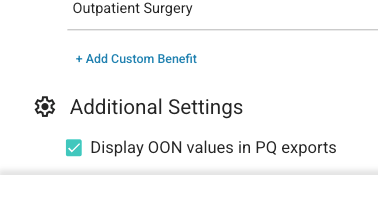
4. Click SAVE in the bottom-right corner.
(Repeat this step for each product where you wish to remove OON benefits.)
This small change makes a big impact, allowing teams to present only the most relevant benefit details to clients while maintaining flexibility across product types.
The PerfectQuote Team
9.04.2025 RFP Workflows Added
Send your RFP through PerfectQuote!
The RFP Module streamlines the entire proposal process. Brokers generate and send RFPs to carrier reps directly through PerfectQuote, and seamlessly exchange messages and receive proposals, all without leaving the application.
These new workflows deliver a real-time, more efficient quoting and renewal experience. Carrier responses and proposals will automatically appear within the group, ensuring little to no disruption to your existing process or those of your carrier partners.
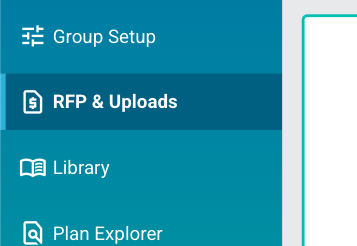
When you log into PerfectQuote, your Employer Group left menu will now show "RFP & Uploads", with a new "RFP" tab within.
We have multiple resources available for you linked below.
Resources:
We can’t wait for you to experience the benefits of this release!
The PerfectQuote Team
8.14.2025 Angle Health Underwritten
The good news: you don’t have to wait for every plan to finish loading. As soon as the first plans return, you can open the Plan Explorer and start building your presentation right away.
- Available Products: Level Funded Medical
- Rates: Underwritten
- Available: 46 states
- Not Available: AK, CA, MA, NY
- Network: Cigna PPO (Aetna ASA PPO coming to PerfectQuote soon)
First & last names
Date of birth and sex (Male/Female)
Home zip code
Enrollment tier (EE, EC, ES, Fam) & plan selection
-
Group Thresholds
-
To receive an Angle underwritten quote, the group must meet the greater of:
10 eligible members, where "members" refers to total employees and dependents
OR the group state's minimum subscriber counts - (note: some states have a min subscriber count greater than 10)
To install plans, please see this list for details on minimum subscriber counts per state.
-
Underwriting Notes
These requirements can be waived for most groups under the right circumstances:
Participation: 50% after valid waivers
Contribution: 50% of the employee-only rate on the lowest offered plan
All plans must meet minimum value
No spousal-only groups
1099 employees allowed when at least 1 W2 employee is enrolled
-
Underwriting waivers available in select cases, but standard participation and contribution rules apply.
v12.1 (released 10.9.24)
-
Benefit Builder - one click Option renewal
Within your Benefit Builder Presentation view, we now allow you to quickly select options for renewal with a single click!- Tap the green circle to the left of the renewal option that you want to add to your Selected Options. Tap the circle again to remove it.
-
Reminder that selecting options and confirming Sold Plans now, will set you up for success next year by having Current Plans ready to go!
-
Plan Explorer - troubleshooting missing plans
Within Plan Explorer, if you don't see expected plans, please tap the "?" icon indicated in the screenshot below, as we will share details around potential reasons for missing plans. Ie - due to group location, census makeup, carrier availability, NPN etc.
Tapping the "?" icon will display popups that indicate issues such as the following:
Invalid NPN - as some carriers require a valid NPN to be on file with them, in order to return plans:
Firm is set up to only display specific carriers or to exclude specific carriers:
-
Plan Explorer - "Reset Plans"
Within Plan Explorer, the "Reset Plans" button will now only reset the filters above your list of plans (visible in screenshot below).- The "Reset Plans" button will no longer reset the sliders and employee counts dropdown within the right side panel to the right of your list of plans.
v11.7 (released 4.16.24)
-
Group Profile Redesign Updates
We've redesigned our Group Profile view to make it easier to manage key group attributes such as Effective Date, SIC Code and Group Address. In addition, we now allow specifying use of a Ben Admin system at the group level.
These new features which will impact both new and existing groups, so please note that you may want to make updates to existing groups:
1) Renewal Date - will allow you to set your group’s renewal date, as we will use this date by default (it can always be adjusted as needed) to make your workflow easier:
-
When manually creating a census
-
When manually creating plans
-
When adding plans from our Plan Library to an Employer Group
Please remind your teams to set this Renewal Date the next time they work on each Employer Group.
-
-
2) BenAdmin setting - will allow specifying whether or not a group uses Employee Navigator
-
This will be active if your firm is currently using Employee Navigator.
-
However, you can turn this off to avoid the “Send to Employee Navigator” prompt if your group does not use it.
-
v11.5 (released 4.2.24)
-
Plan Templates
We've added even more flexibility to Plan Templates, as we now allow customization of our standard benefits as follows:
-
Renaming - allows you to update benefit names to meet your team and clients’ preferences.
-
Reordering - reorganize benefits to match your team’s talk track
-
Hiding - benefits that are not critical to your renewal discussions can be hidden (note: these will remain visible in the app but hidden within your export proposals).
-
-
Firm-Level Plan Library
The Plan Library allows the creation of standardized plans that can be accessed by all users across all employer groups, reducing repetitive work and ensuring consistent client presentation.
Plans can be created manually or by utilizing our quote upload technology for even more efficiency. Note: The file must be in a readable format and currently supported.
v10.17 (released 1.23.24)
- Automatic app updates - upon releasing app updates, we will now present you with a pop-up if we detect that your browser needs to be refreshed. This will ensure that you have the latest updates and avoid unexpected issues.
v10.16 (released 1.16.24)
- Sold Plans quote downloads - within our "Sold Plans", you can now download zip files of quote files per carrier, by tapping the "3-dot" menu.
- Renewal Plans - when viewing full plan details, then tapping the "Back" button or browser "back" link, we now save your place and take you back to your most recent position with the list of Renewal Plans.
- EE counts for age rated plans - when creating/editing current/renewal plans where "Rate Type" is set to a single "Age Rated" total monthly premium, you can now enter EE counts, which will also appear in your exports.
- Current Plans Employer Contributions - to avoid confusion, when editing a Current Plan, if "Rate Type" is set to a single "Age Rated" total monthly premium, we've removed the "Apply to All Renewal Plans" button within the "Employer Contributions" section. As this button is only relevant to tier rated plans.
- For Firm Admins - your list of firm users will now default to showing active users only. You can always adjust filters to display inactive users.
v10.13 (released 12.12.23)
- Inline Custom Benefits - for greater flexibility when editing plans, you can now add custom benefits within each benefit category - - start by tapping the blue "+ Add Custom Benefit" link here:
-
- These benefits will also appear in your export proposals.
- Custom benefits be removed, renamed and/or repositioned by tapping these links:
v10.9 (released 11.13.23)
- ACA Medical - in order to support renewal scenarios such as "grandfathered plans" that are age rated but were in place prior to the introduction of metallic levels, we now allow adding a manual age rated premium to ACA Medical plans, without requiring selection of a Metallic Level.
- Export All Plans report - we've updated print formatting for easier readability.
v10 (released 9.12.23)
We’ve streamlined the renewal process by removing the Shopping Cart - tapping the “Renew Plans” button from your Benefit Builder Selected Options, will take you straight to a view to confirm your sold plans.
In addition, within the plan contribution view, the “Send to Shopping Cart” button has been renamed “Renew Plan”.
-
We’re redesigned and renamed Plan Orders as “Sold Plans”, organizing plans by carrier, to allow:
Downloading plans by carrier
Copying carrier quote ID (where available)
Linking to carrier portal to complete plan installation (where available)

We now allow saving/submitting your census when Ideon rates are unavailable, to allow retrieving plans/rates from direct carrier integrations.
When manually creating a current plan, you can now copy plans from future effective dates.
v9.13 (released 7.5.23)
Enhancements
Attention California brokers working with groups that have out of state employees - -
Upon census submission, by default, certain BCBS CA, CalChoice and Sharp Health plans will not be returned if some employees reside out of state.
However, if you prefer to display restricted plans that these groups (with out of state employees) may not be eligible for, please have your Firm Admin update this Firm Setting, within the CONTENT tab:
v9.12 (released 6.27.23)
Enhancements
- The User Profile pop-up view has been updated to allow entering a National Producer Number (NPN). This will allow you to receive direct carrier rates where applicable.
Click Here |
To Enter NPN |
|---|---|
|
|
- Within current plans, if your firm uses Employee Navigator, the “Send plan to Employee Navigator” checkbox is now unchecked by default.
- You can now see available support for quote uploads by carrier and product, by going to Uploads in the left menu, then tapping Quote Templates
- We’ve removed the “Recaptcha” login puzzle.
Bug fixes
- Aetna direct AFA plan issues
- We’ve updated the PerfectQuote-to-BenefitPoint integration to avoid the issue where plans synced to BP, appear with today’s effective date.
- Note: this issue will still occur for plans with effective date more than 1 year ago.
- Rounding issues within ACA Med individual age rate tables such as here:
\
v9.11 (released 6.20.23) - ACTION REQUIRED
Enhancements
- Our census now supports ancillary selections for Dental, Vision and Basic Life, to allow more granular specification of member/dependent selections. These selections will be reflected in premiums for ancillary plans returned via census submission and our direct carrier integrations.
- Updates required: please use our new census xls file, version 3.0.11, accessible by navigating to the Forms left menu item, or simply using one of the census files attached to this email.
- When entering a census into PerfectQuote, you will be required to fill in the Dental Tier, Vision Tier and Life Tier selections.
- Note: for existing censuses, the Dental Tier, Vision Tier and Life Tier selections will be defaulted to the Medical Tier selections for each employee. Therefore, please adjust the ancillary selections as needed.
In addition, we’ve moved the Waived Coverage and Waiting Period items out of the Plan Selection dropdown, and into each of the Medical, Dental, Vision and Life Tier dropdowns.
- New Aetna direct Alt-Funded 10/1/23 plans have been released will be available for quoting starting 7/1/23.
v9.10 (released 6.1.23)
Enhancements
- Within our PQ Export, we now hide the Additional Benefits tab if no information was entered into this tab within the Renewal Plans view.
v9.1 (released 4.11.23)
Enhancements
-
Workflow notifications - after submitting a census and upon retrieving plans from our direct integration partners, you can now click the PerfectQuote icon in the upper right corner to see what plans have been returned.
- Tapping on notifications will take you to the specific group and plans, so you can work across multiple groups and be notified when census submissions are complete.
- Notifications will also let you know if any plans could not be retrieved (ie - due to census/employee/group makeup and/or carrier rules/restrictions).
-
Firm Admin & Firm Reviewer Employer Group access - to streamline Employer Group setup, we’ve updated user permissions so that Firm Admins and Firm Reviewers will automatically have access to all Employer Groups.
- When setting up an Employer Group, Firm Admin or Firm Reviewer users will no longer appear in the dropdown lists for group access.
- Group access can still be restricted to specific non-admin firm users. Note: if this box is unchecked, Firm Admins and Firm Reviewers will still be able to access the group.
v8.6.14 (released 3.1.23)
Enhancements
-
Washington ACA Med Adult-Child support - for select Washington carriers, we will now return Adult-Child composite rates.
- These rates will be available throughout the app, and also available when manually building plans.
-
ACA Medical Plan Availability report - within our Renewal Plans view, you can now tap the “Not seeing your plan?” icon to download a report of ACA Medical plans available to your group, based on the group’s location FIPS code and effective date.
- Note: some plans may not be visible due to census demographics (ie - employee zip code). Please check with your carrier reps for further details.
-
Flexible Employer Contributions - you can now set employer contribution amounts that exceed a given tier rate, to model scenarios where employees may receive credits.
- Ex: Employee+Child rate = $350, but employer wants to contribute $400 towards EC, and employee receives a $50 credit.
v8.4 (released 10.12.22)
Beam Dental, Vision & Basic Life plans now available!
How do I get them? These plans are sourced directly from Beam and will automatically be retrieved with your census submission, giving you additional offerings to present to your clients. No need to upload quote files!
Tell me more! Instantly review underwritten and bindable policies for Beam products, while saving time and eliminating data entry. Standard commissions are built into the rates, and brokers can go directly to Beam to further negotiate premiums.
My client wants to purchase Beam! Grab your Beam Quote ID (see below) and plan names from your Benefit Builder or Plan Order export and send them to your Beam representative (or email to intro@beam.dental if you don't currently have a Beam rep). These Quote IDs can be used throughout your Beam renewal process.
How do I find my Beam Quote ID?
By tapping this icon on the plan card
Or tapping the "Notes" link when viewing plan details
Or grabbing it from the end of the "plan name" within proposal spread
v8.3 (released 10.4.22)
Enhancements
-
Export All To Benefit Builder - you can now add up to 40 plans to Benefit Builder with a single click!
- Within your Renewal Plans view, tap the “+ All Benefit Builder” button, then “Add All”.
- Each plan will be added to its own Benefit Builder Option as “Plan 1”.
- More gradual plan filtering - within your Renewal Plans view, if you’ve adjusted the slider filters to exclude all plans, you can now tap to increase sliders by only 10% (instead of 25%).
v8.2 (released 9.20.22)
Enhancements
We now offer alt-funded Medical plans direct from Aetna, initially available in CA, TX, AZ, FL and NJ (we will be activating additional states over the coming weeks)!
Upon submitting a census, the Aetna direct plans will automatically appear within your Renewal Plans view, along with your ACA Medical plans.
These plans will have complete benefit details directly from Aetna, to allow you to offer more plan options to your employer groups, with no additional actions required.
Note:
- These Aetna direct plans may take a few moments to appear, as you will see a green notification in the upper right corner of your screen, when the plans are available.
- State specific group minimize/maximum size restrictions apply.
v8.0 (released 7.14.22)
Enhancements
We’ve redesigned our Employer Group view, to better align with your renewal workflows.
- Key views reordered to easily step through your renewal, no more jumping around!
- Benefit Builder now has its own tab.
- Access your group’s Plan Orders directly within your group.
Check out this video for a quick walk through!
v7.2 (released 7.5.22)
Enhancements
-
As part of our continuous commitment to security, when resetting your password:
- The new password cannot have been used in the last 365 days.
- The new password cannot contain a portion of your username (5+ characters). For example, if your username is “johnsmith@abc.com”, then your password cannot be “smithJ789!”.
-
We’ve streamlined user roles to simplify your workflows. The following roles are now available for your teams:
-
Firm User (requires a paid user license)
- Can access all content and take any actions throughout the PerfectQuote application (ex: submit census, upload quotes, create/edit/delete plans, create/edit/delete groups etc.).
- By default, cannot manage firm user accounts or firm settings.
-
Firm Reviewer (no charge, formerly the “Firm Manager” role)
- Has read-only access to all content.
-
Cannot take any actions to create or edit/update content, ie - cannot:
- Submit a census
- Create/edit plans
- Add plans to Benefit Builder/Shopping Cart
- Mark plans as favorites
- Set employer contributions
- By default, cannot manage firm user accounts or firm settings.
-
User accounts (either “Firm User” or “Firm Reviewer”) can have an “Admin” flag active, which will allow:
- Managing firm user accounts
- Managing firm settings (see update notes below)
-
Firm User (requires a paid user license)
- Note: the above roles replace the Firm Admin, Broker, Account Executive, Specialist & Firm Manager roles.
-
We’ve also released new Firm Settings views, to allow users with the “Admin” flag active, to view and/or manage the following:
- Firm Profile - including firm DBA, EIN, address and logo
-
Content configurations
- Default Benefit Builder view (Options vs Packages)
- Export disclosure text (within standard PerfectQuote export template only)
- ACA carrier exclusion settings
-
Security settings
- Enable Multi-Factor Authentication for additional security, which will require your users to enter a secondary code (in addition to username & password) to access PerfectQuote
-
Accounting - ability to view your firm’s:
- License tier
- Contract start and renewal dates
- Pre-pay and monthly license rates
-
Integrations (requires premium license)
- BenefitPoint CRM integration settings
- Employee Navigator Benefits Admin integration settings
v7.1 (released 5.12.22)
Enhancements
Welcome to the “beta release” of our new Combined Medical experience!
1) To better align with broker workflows and client expectations, as well as to allow side by side comparison of various plan/rate types (composite rated fully & alt funded, age rated small group etc.), we will be combining our “Medical” and “ACA Med” views, including the following:
- Within the CURRENT PLANS and RENEWAL PLANS views, we’ve introduced a new “COMBINED MED” tab.
- This will allow you to get comfortable with a single view of all medical plans, while still being able to browse/manage your plans between “Medical” and “ACA Med” tabs if desired.
- When manually creating medical plans, you will now only see a single “MEDICAL” product option.
- You will then be presented with all plan design options to support all medical plan types.
- Benefit Builder will display a single “MEDICAL” tile, which can contain all medical plan types.
- Benefit Builder exports will contain:
- A single “Medical” tab (replacing the “ACA Composite”, “ACA Age” and “Medical” tabs).
- A single “Medical Contrib” tab (replacing the “ACA Composite Contrib”, “ACA Age Contrib” and “Medical Contrib“ tabs).
NOTE: the "COMBINED MED", "MEDICAL" and "ACA MEDICAL" tabs will be replaced by a single "MEDICAL" tab on May 17.
2) In addition, we’ve streamlined our Medical Prescriptions as follows:
- Prescription benefits will be uniform across all medical plans (large & small group), allowing for easier side by side comparison within exports.
- Out-of-network prescription benefits have been removed.
- We’ve added support for “Non-Preferred Generic Prescriptions” for ACA medical plans.
- Deductibles have been reordered and relabeled to increase clarity.
3) We’ve also renamed plan selections as follows, to reduce confusion:
- OLD: Base Plan, Buy-up 1, Buy-up 2 etc.
- NEW: Plan 1, Plan 2, Plan 3 etc.
Please click here to download the latest Census file for best results.
4) BenefitPoint integration users - we now warn you if you’re trying to import a BenefitPoint account into PerfectQuote, and the account has previously been imported.
v6.3 (released 3.1.22)
Enhancements
-
BenefitPoint: when confirming Plan Orders and creating new Current Plans, you may now be prompted to specify the “Commissions Paid By” carrier (depending on how your firm tracks commissions).
- For plans sent as “Plan Origination Reason” = “Renewal Plan”, the “Commissions Paid By” carrier will automatically be set to match that of the prior year plan selected (unless your firm has set this to match the renewal plan’s issuing carrier).
- For plans sent as “Plan Origination Reason” = “New Plan”, the “Commissions Paid By” carrier will automatically be set to match the issuing carrier of your renewal plan, but can be adjusted if needed.
-
The “Commissions Paid By” carrier for renewal plans sent to BenefitPoint can be set as follows:
-
To match the “Commissions Paid By” carrier of the prior year plan - this will be the default behavior.
- Your firm will be set to this unless you have specifically been contacted by PerfectQuote Support. Please have your internal PerfectQuote admin contact us if you need this updated.
To match the issuing carrier of the renewal plan sent from PerfectQuote.
-
Trivial updates
Within Plan History, updates from BenefitPoint will now indicate “Imports/Updates synced from BenefitPoint”.
v6.2 (released 2.16.22)
Enhancements
-
ACA Med: census members can now be set to “Waived Coverage” (under “Plan Selection”).
- Waived members are NOT factored into rates/premiums.
-
Major Medical and ACA Medical: you can now export all plans (ancillary coming soon!).
- Exports will be emailed to you, and plans will be organized per carrier, and sorted based on the selection in the “Sort by” dropdown in the app.
- In-app help attachments: files can now be attached to in-app help submissions.
v6.1 (released 2.1.22)
Enhancements
-
BenefitPoint support for 3/2/1 tier rate plans - you can now import and sync plans with the following rate types into PerfectQuote as follows:
-
3 tier rates, where BenefitPoint tier rates are mapped to PerfectQuote tier rates as follows:
- BP “EE” to PQ EE rate
- BP "EE & 1 Dep" to PQ EE+S rate
-
PQ EE+C rate will be empty.
- Note: if you edit the plan in PerfectQuote and add an EC rate, the PQ plan premium will update, but the EC rate will not sync to BP, therefore, plan premiums will be mismatched between PQ and BP.
- BP "EE & 2 Deps" to PQ EE+FAM rate
-
2 tier rates
- BP “EE” to PQ EE rate
- BP “EE & Dep(s)” to PQ EE+FAM rate
-
PQ EE+S and EE+C rates will be empty.
- Note: if you edit the plan in PerfectQuote and add an ES or EC rate, the PQ plan premium will update, but the ES and EC rates will not sync to BP, therefore, plan premiums will be mismatched between PQ and BP.
-
1 tier rates
- BP “EE” to PQ EE rate
-
PQ EE+S, EE+C and EE+FAM rates will be empty.
- Note: if you edit the plan in PerfectQuote and add an ES, EC or EF rate, the PQ plan premium will update, but the ES, EC and EF rates will not sync to BP, therefore, plan premiums will be mismatched between PQ and BP.
-
BenefitPoint support for additional plan types - you can now import and sync the following plan types into PerfectQuote:
- POS (2-Tier)
- EPO (2-Tier)
- EPO (1-Tier)
-
3 tier rates, where BenefitPoint tier rates are mapped to PerfectQuote tier rates as follows:
v5.24 (released 11.30.21)
Enhancements
- Renewal Plans-ACA Med: you can now filter by plans without any riders, in addition to plans with specific riders.
- Renewal Plans-ACA Med: we now let you know if at least one available plan has been held back and not returned, due to group and/or member factors.
- BenefitPoint: when manually building a current plan, you can now choose to NOT send it to BenefitPoint.
v5.23 (released 11.18.21)
BenefitPoint: when sending renewal plans from PerfectQuote to BenefitPoint, we’ve eliminated the need to manually copy the following information from prior year plans:
- Key plan details (such as Policy/Group Number)
- Commission splits
- Employer Contributions
- Eligibility details
- Attachments
- Plan contacts
CLICK HERE FOR COMPLETE DETAILS
OR
WATCH THIS BRIEF TRAINING VIDEO TO SEE HOW
v5.22 (released 11.11.21)
Enhancements
-
ACA Med: we’ve updated how we show coinsurance values to consistently show what the plan pays, as follows:
- Old: some benefits (ex: Rx) would show “insured pays” when the insured responsibility is 0%.
- New: when insured responsibility is 0%, we now display “100%” representing “plan pays”.
- Reminders:
- Copays/deductibles are shown as “insured pays” (ex: Office Visits).
- Coinsurance values are shown as “plan pays”.
-
ACA Med - RX: we’ve added two new optional fields to ACA Med plans for greater flexibility to accommodate Rx benefit values across carriers & plans. These fields will only appear on our plan contribution view and exports if values have been specified for them:
- Rx Tiers
- Individual Rx Deductible
- Both benefits accept a single free form text value (not separate In/Out values).
v5.20 (released 10.19.21)
Enhancements
-
Major Med & ACA Med - adjustable HDHP flag
- We automatically mark medical plans as HDHP if they qualify based on IRS guidelines. However, we now allow you to manually adjust the HDHP flag.
- Note: if you manually unmark a plan that our application marks as HDHP, you can always re-enable auto-calculation by hovering over the ? tooltip and clicking on the notification.
-
Basic Life, Short-Term Disability, Long-Term Disability - auto-calculated total monthly premiums
- We now automatically calculate total monthly premiums for Basic Life, STD and LTD plans, when supporting rate variables (ex: Volume, Rates, Covered Benefits etc.) are available.
- If a required supporting rate variable is unavailable, you can still manually enter a plan total monthly premium.
- A red label will indicate when a plan’s premium is auto-calculated and uneditable:
-
BenefitPoint 2 tier rate support - we now support syncing BenefitPoint plans with 2-tier rates.
- Note: the BenefitPoint “EE & Dep(s)” rates and employee counts will correspond to the PerfectQuote “EE + Family” rates and employee counts.
v5.17 (released 7.13.21)
- For our New York state based brokers, we’ve made the ACA Small Group Medical process quick & easy! Within the Census view, you now only need to enter in employee counts by tier, to retrieve rates.
- You can now view plans in Benefit Builder by year, to keep organized and easily look back at previous year plans.
v5.15 (released 5.26.21)
-
You can now make adjustments to plans from Benefit Builder and your Shopping Cart without having to remove and re-add.
- Note: if you adjust Employer Contribution dials or Employee Counts, those adjustments will only be reflected in that particular instance of the plan within Benefit Builder or your Shopping Cart.
- We now indicate HDHP Medical & ACA Med plans if a plan meets ALL of the annual criteria for the following values:
- Individual Deductible (for 2021, must be greater than or equal to $1,400)
- Family Deductible (for 2021, must be greater than or equal to $7,000)
- Individual OOP Max (for 2021, must be less than or equal to $7,000)
- Family OOP Max (for 2021, must be less than or equal to $14,000)
- Note: you will no longer be able to edit this HDHP checkbox, to ensure accurate depiction
v5.12 (released 3.19.21)
- We’ve revamped our Renewal Plans view with new sorting & filtering, to make it easy for you to find the exact plans for your clients.
- Search for ACA Med by metallic level, riders and more!
- In addition, we’ll remind you to create a current comparison plan if you haven’t already.
v5.11 (released 3.4.21)
Bulk Employer Contributions (for Medical, ACA Med Tier Rated, Dental & Vision)
We’ve made it easy to set employer contributions across all of your renewal plans, with just a few clicks. Eliminating the need to set contributions on every plan!
Two ways to do so:
1) Apply contributions from your current inforce plan, to your renewal plans (of the same product).
- When editing a CURRENT PLAN, set Employer Contributions.
- Tap the “Apply to All Renewal Plans” button, and those contribution values will apply to all renewal plans of the same product.
Note: you can always adjust contributions for plans individually. This action just gives you an easy starting point.
2) Set contributions for a renewal plan, and apply those to all other renewal plans (of the same product).
- After setting employer contributions for a renewal plan, check the “Apply to All Plans” checkbox, and the contribution values of the plan you’re working on, will be set for all other renewal plans of that product.
- If you change contributions for a plan, while the “Apply to All Plans” checkbox is selected, then those contribution values will be applied to all other plans.
- However, if you unselect the “Apply to All Plans” checkbox, then change contributions, then the employer contributions of all other plans will remain the same.
v5.10 (released 2.15.21)
Enhancements
- Check out our new Plan Library - initially for ACA Med - for one click creation of current and renewal plans.
- When creating an ACA Med plan, if plans are available for your selected carrier and effective date, you’ll be able to select a plan from the “Quick Start” box.
- Once you select a plan from our plan library, you can optionally update the plan name, or use it as is.
- All benefits from the selected plan will automatically be populated, and you only need to enter in employee and rate details. Benefits can also be adjusted as needed.
- You can also always start by building a plan from scratch.
- ACA Census - upon loading or creating a new census, the Plan Effective Date will automatically default to the first day of the next month.
v5.9 (released 12.29.20)
Enhancements
-
ACA Med
- We now show full first and last names of employees within exports and age rate tables.
- When resubmitting/updating your census, we will no longer automatically clear plans from Benefit Builder or your Shopping Cart.
- If plans in Benefit Builder/Cart are returned again from your new census, the existing Benefit Builder/Cart plans will be updated with new rates.
- If plans in Benefit Builder/Cart are NOT returned from your new census, they will be cleared from Benefit Builder or your Shopping Cart.
-
Benefit Builder: when adding plans to Benefit Builder, you will now be prompted to add to the next available Option/Package, to reduce clicks and align with your workflow.
-
Renewal Plans view: we’ve made the plan filters easier to use, to easily click to enter specific filter values.
Trivial updates
- Group Information: we’ve renamed the “Total Employee Count” field to # of Benefit Eligible Employees.
v5.7 (released 10.26.20)
Enhancements
- ACA Med: when manually building renewal plans, you can now create Age Rated plans (ex: for creating grandfathered plans). This option was not previously available for manually created renewals.
- For all products: we’ve updated the benefit layout within our “card views” within Benefit Builder and Plan Orders, for easier scanning & readability.
v5.6 (released 10.15.20)
Enhancements
- Employer Groups can now be set to be accessible by all Firm users, via this checkbox, for easier workflow when several (all) staff members work on groups collaboratively.
v5.5 (released 10.12.20)
Enhancements
- We’ve added a bunch of new and enhanced benefits for 2021 across all products, as well as redesigned our Contribution View and export for easier viewing.
- We’ve also completely redesigned the experience of manually building a plan, to make it even easier & faster to get started with renewals.
v5.4 (released 9.7.20)
Enhancements
- On our Renewal Plans view (for Major Medical, Dental & Vision), we’ve made it easier and more intuitive to adjust how renewal plan costs are calculated:
- Using quote census employee counts
- Or to match the employee counts from your current inforce plan
- Or using custom employee counts that you can manually set
- For ACA Medical plans, we now breakdown Prescription benefits by:
- Generic Rx
- Brand Rx
- Preferred Brand Rx
- Speciality Rx
- NOTE: these will be available in your spreadsheet export in a few weeks, we appreciate your patience!
Bug fixes
- Within Benefit Builder Option/Package detail views, the “Employee Age Rates” tables are now properly reflecting Employer Contributions.
v5.3 (released 8.31.20)
Enhancements
-
Adding plans to Benefit Builder: your last used Benefit Builder setting (to organize plans by “Package” or Product”) will be maintained, for more efficient workflow. No more toggling back and forth!
-
ACA employee plan selection: within Benefit Builder, when assigning employees to plans, you can now mirror all assignments across all Options with one click. For example, assign employees to specific plans for Option 2 below, then tap the green button to mirror those plan assignments across all other options.
-
ACA Med plans with riders: we now display the full plan name (including rider designations) on our Renewal plans view, and also include the shorter SBC name within plan notes (click black icon below). You can also search for terms included within SBC names (such as plan codes).
- The plan’s SBC name is also shown at the bottom of the benefits card on a plan Contribution View.
v5.0 (released 8.5.20)
Enhancements
-
For ACA Medical plans, you can now see plan costs calculated by Age Rates or Tier Rates (where both are available).
- NOTE: this can result in variation in plan costs depending on which rates are being used (age or tier rates), if employee plan assignments (ie - Base Plan, Buy-up 1 etc.) are adjusted.
- Please review our training guide for complete details.
NEW: browse our videos to help you process renewals and share with your team:
http://support.perfectquote.io/
v4.8 (released 7.8.20)
Enhancements
- We’ve completely redesigned our spreadsheet export, including:
- Displaying Current Inforce plans next to Renewal plans for easier presentation.
- For ACA Medical, we now display a tab showing rates for all Employees on all selected plans, in addition to showing rates for Employees according to their plan selections.
- For Medical, Dental & Vison - separate Employer Contribution tabs.
- Our Benefit Builder tool now supports a NEW way to organize and present plans - - when adding a plan to Benefit Builder, you can choose to organize plans by PRODUCT.
- This will allow you to create Options per product (ie - Medical), where each Option contains one or more plans (ie - Base, Buy-up 1 etc.).
- Within the Benefit Builder view, if you choose to Display By Product, you can then export all of our plan options into a single spreadsheet.
- We encourage you to give our new Benefit Builder layout a try - - please contact your Account Manager for training, as we’d love to walk you through it.
Trivial updates
- Secondary Brokers and Account Executives can now fully edit Employer Groups they are assigned to, including adjusting team members assigned to the Group. This was previously not possible, but we’ve heard your feedback and have made it easier for your teams to collaborate.
v4.6 (released 6.22.20)
Enhancements
- Within our Renewal Plans view, once you enable and set your Employee Counts for a product type, the values will remain persistent across all products (except ACA Medical, where employee counts are driven by the census).
-
We’ve redesigned the links to upload SBCs and quote files to be more intuitive and avoid any confusion.
- Within our Current Plans view, you can upload SBCs to easily create Major Med or ACA Med current inforce plans.
- Within our Quote Upload view, you can upload quote files for Major Med & Ancillary plans.
Trivial updates
- When manually building a current or renewal plan, the Carrier list items are now alphabetized for easier setup.
Bug fixes
- For ACA Med plans in New York state, we’ve fixed an issue where plan costs were disappearing and/or displayed as $0.00, after adding plans to Benefit Builder.
v4.4 (released 6.1.20)
Enhancements
For all products
- On our Renewal Plans view, we’ve hidden the list view of plan cards while we undergo some cosmetic updates and improvements.
For ACA Medical plans
We’ve adjusted our ACA renewal workflow to make sure we are providing you with the most accurate rates available.
- On our Renewal Plans view, we’ve removed the “Custom EE Counts” option from the “Plan costs” dropdown. In order to see plan costs for a different set of employees, please update your census and resubmit, to retrieve a new quote.
- Within our Benefit Builder plan selection view
- We’ve added total costs per plan, to help you understand costs as you move employees between plan options.
- If you move employees between plans, we’ll update your plan costs to reflect your new employee plan selections.
v4.2 (released 4.27.20)
Enhancements
For ACA Medical plans:
- When manually creating an ACA Medical plan, you can now specify that the plan is age rated (vs tier rated), and specify:
- Total monthly cost
- Monthly employer contribution ($ amount or % of total plan cost)
- On our Renewal Plans view:
- If renewal plans return both tier rates and age rates, then the current inforce comparison area will display both current tier rated plans and current age rated plans.
- However, if renewal plans return only age rates, then the current inforce comparison area will only display current age rated plans (current tier rated plans will not appear).
- On our Renewal Plans view and Contribution View, plan costs and census employee counts will default to match the current inforce comparison plan (if available)
- You now have the option to view plan total monthly costs reflecting (for plan cost modeling purposes only):
- All census employees (and their dependents).
- Only census employees (and their dependents) that have selected that plan as a particular option (ie - Base Plan, Buy-up 1 etc.). Be sure to tap UPDATE PLAN COSTS button after adjusting the census selection dropdown.
- If renewal plans return tier rates, then you can also specify custom employee counts.
For all products:
- Within Renewal Plans sliders, we’ve updated labels & font size for readability & clarity.
| Old | New |
- We’ve improved the experience of adding plans to Benefit Builder to reduce clicks and inform you which packages and nicknames are already in use.
- You can also now add plans to Benefit Builder from our Renewal Plans view.
- We’ve made Client & Broker Favorites easier to identify (look for hearts & stars!), within our Renewal Plans view.
Here's a few tips to help you get the most out of our new ACA functionality:
-
To allow you to view renewal plan costs by various census employee selections (Base Plan, Buy-1 etc.), please resubmit your census.
- Note: this can take up to 2-3 minutes depending on # of census employees and # of plans available. We appreciate your patience, as we're working hard to find you all available plan choices!
-
If you're working with a group in a state that returns age rates only (no composite tier rates), then please note that our Renewal Plans view will only show current inforce comparison plans that are age rated.
- If you previously had created current inforce plans specifying tier rates, then these will no longer appear. You can edit them to specify age rates, to display and compare them to renewal plans.
Trivial updates
- When manually creating a Current or Renewal Plan, the Product will be set by default if you click “+” from within a Product tab.
| Click from here | Product set by default |
- Within Benefit Builder Package view and Shopping Cart view, we’ve temporarily hidden the plan EDIT button/link, while we resolve a minor issue.
v4.1 (released 3.30.20)
Enhancements
For ACA Medical plans:
- On our plan Contribution View, you can now easily see employee age rates, to help you define your contribution strategy
Click the link under the TIER RATES table
To see employee age rates
- Within a Benefit Builder package, when adjusting employee plan selections, we now display employee age rates per plan.
v4.0 (released 3.17.20)
Enhancements
- ACA Renewal Workflow (please walk through the updates in detail here)
- For ACA Med plans where no composite rates are available, we now calculate plan costs based off of age rates (vs estimated converted tier rates).
- XLS exports now include complete age rate tables for renewal plans.
- Employer Contribution View
- We’ve broken out “Dependent Only” composite tier rates for easier contribution calculations, and updated overall page layout..
- Benefit Builder - Current Package Comparisons
- Renewal packages costs are now compared to the entire cost of the Current Package, including all plans.
- Previously, renewal package costs were only being compared to matching Current Package plan types & nicknames.
Bug Fixes
- ACA XLS Exports: resolved inconsistencies within Employer Contribution values.
v3.9.3 (released 3.11.20)
Bug Fixes
- Resolved issue of Brokers & PQ Admins unable to see a “Send To Shopping Cart” button on plan Contribution View.
v3.9.2 (released 3.10.20)
Enhancements
- Account Executives now have the ability to:
- Create/upload/manage Current Plas
- Manage Shopping Carts
v3.9.1 (released 3.5.20)
Enhancements
- Secondary brokers now have the same permissions as primary brokers (ie - to manage shopping carts, plan orders etc.).
Trivial updates
- Forms: added a Last Updated column to indicate recent files.
- Census upload: added user friendly error message “File not recognized as a census” upon uploading a non-census file.
Bug fixes
- Contribution View: resolved minor inconsistencies related to Employer Contribution view dials
v3.9 (released 3.3.20)
Enhancements
- Benefit Builder Current Package
- Hidden plans are excluded from xls export.
- Pop-up modal design updated throughout app
- We now show age banded rates to 3 decimal places (where applicable), on Contribution View for Non-Medical plans (ie - volLife).
Bug fixes
- Within Contribution View, ACA Med converted tier rates no longer show 3 decimal places.
v3.8 (released 2.17.20)
Key enhancements
- You can now compare ACA Medical and Major Medical plans, within our Renewal Plans view. Reminder that you can select up to 4 plans for side-by-side comparison.
- Within Benefit Builder, you can now see any of your current in forced plans that have been set up, as the Current Package, for easy comparison to your renewal packages.
- When reviewing a Current Package with a group client, you can also hide specific plans if they are not relevant, or otherwise should not be shown. Click the magnifying glass icon in the top right corner or the Current Package tile, then tap HIDE to hide a plan.
- To reveal hidden plans, scroll to the bottom of the package view, expand the ARCHIVED PLANS section, then tap DISPLAY, to show that plan within the Current Package.
- Clearing a census will clear all ACA Medical plans from:
- Renewal Plans view
- Benefit Builder Packages
- Shopping Cart
- Plans will NOT be removed from existing Plan Orders
- You can no longer add both an ACA Medical and a Major Medical plan to a given Benefit Builder Package, to avoid confusion.
Key bug fixes
- Updating a user’s email address will no longer break any existing Employer Group associations.
- Employer Group logo upload issue has been resolved - logos can be uploaded again!
v3.7 (released 1.27.20)
Key enhancements
- To account for various preferences and habits in searching for plans, renewal plans will now display both Plan codes and Benefit names, pending availability in the uploaded quote file.
- Old: Blue Advantage Bronze HMO 801
- New: G660ADT: Blue Advantage Bronze HMO 801
- Upon uploading a quote file for a carrier that requires separate quote and rate files to be zipped together (ie - Blue Shield CA, Anthem, Primera), a warning message will appear reminding of the zip/archive file requirement.
- A new census form is now available for download. Form includes dropdown boxes to minimize errors when populating employee information.
1.20.20
Key enhancements
- Employer Group specific Shopping Carts
- For a given Employer Group, all Firm and Employer Group users will see the same plans in the Shopping Cart, to eliminate conflicts and streamline collaboration.
Key bug fixes
- No longer need to log out and log back in between creating a new Employer Group and uploading a census for that group.
1.13.20
Key enhancements
- For ACA Medical plans, within our Renewal Plans view, all plan costs and comparisons will be driven by the latest census employee counts (used to reflect current effective year census) to better reflect renewal year employee scenarios.
- Renewal plan costs will reflect latest census counts.
- Current in force comparison plan will reflect latest census counts.
-
Employee Counts values will reflect latest census counts.
- Values can be adjusted for projections or to reflect employee plan selections, but can also be reset to census values.
OLD NEW
Values now reflect latest census counts
12.24.19
Key enhancements
- Within our Renewal Plans view, we’ve renamed & repositioned actions to make them more intuitive:
- Renamed Set To Current link to Match current plan. Tapping this link will set plan slider values (such as Deductibles) to match the current enforced plan. This Match current plan link will not appear if no current enforced plan exists.
- Moved Match current plan and Reset links to be above the sliders they impact.
- Separated the EMPLOYEE COUNT toggle label to:
- EE COUNTS label (refers to the table items below)
- APPLY toggle label (indicates what the toggle will do if activated, ie - will apply the EE counts specified to the renewal plans displayed)
- Tapping the Match current plan link will no longer turn off the EE Counts toggle.
OLD NEW
- Within Contribution View, hovering over the Employer Contribution dials will change the visual state of the field, letting the user know it’s an editable field.
- Within Benefit Builder, we now include the current plans for easy comparison to any renewal packages.
- The Current Package will only show plans for the current effective year.
-
Current Plans and Renewal Plans views will now default to the latest year with at least one plan.
- This logic will apply per plan type (ie - plan types may default to different years, depending on plan availability).
- Current Plan tab views will prompt users to manually build plans (or upload Medical/ACA Med SBCs)
- ACA Medical plans now scrape the Coinsurance field from Vericred
Key bug fixes
- Contribution View “Dependent Mode” % ER contribution dials can now be set to exact values.
- Certain Life STD/LTD and vLife plans that were not showing Employer Contribution values within various views (Contribution View, Benefit Builder, Package View etc.), are now properly displaying ER contribution values.
- Miscellaneous red “Server Request Errors” have been eliminated.
12.9.19
Key enhancements
- To maximize accuracy within our renewal plan contribution view, we now support decimal values for employer contribution %.
- When manually building a plan, we’ve updated the design of our employee/dependent mode toggle to improve clarity.
- Updated Benefit Builder business logic to better support comparison of ACA Medical plans with Jan 1 vs Dec 1 effective dates.
- To avoid user confusion, we now display plan effective year within our Benefit Builder census assignment view.
- We’ve implemented a security update to prevent concurrent user logins.
Key bug fixes
- Within Benefit Builder, we’ve resolved occasional discrepancies between total package monthly costs vs individual plan costs.
- We’ve resolved an issue where for some ACA Medical plans, xls exports were only detailing rates for 25 employees.
- Minor improvements to the password reset experience.
Coming soon
- Stay tuned!
Comments
0 comments
Article is closed for comments.